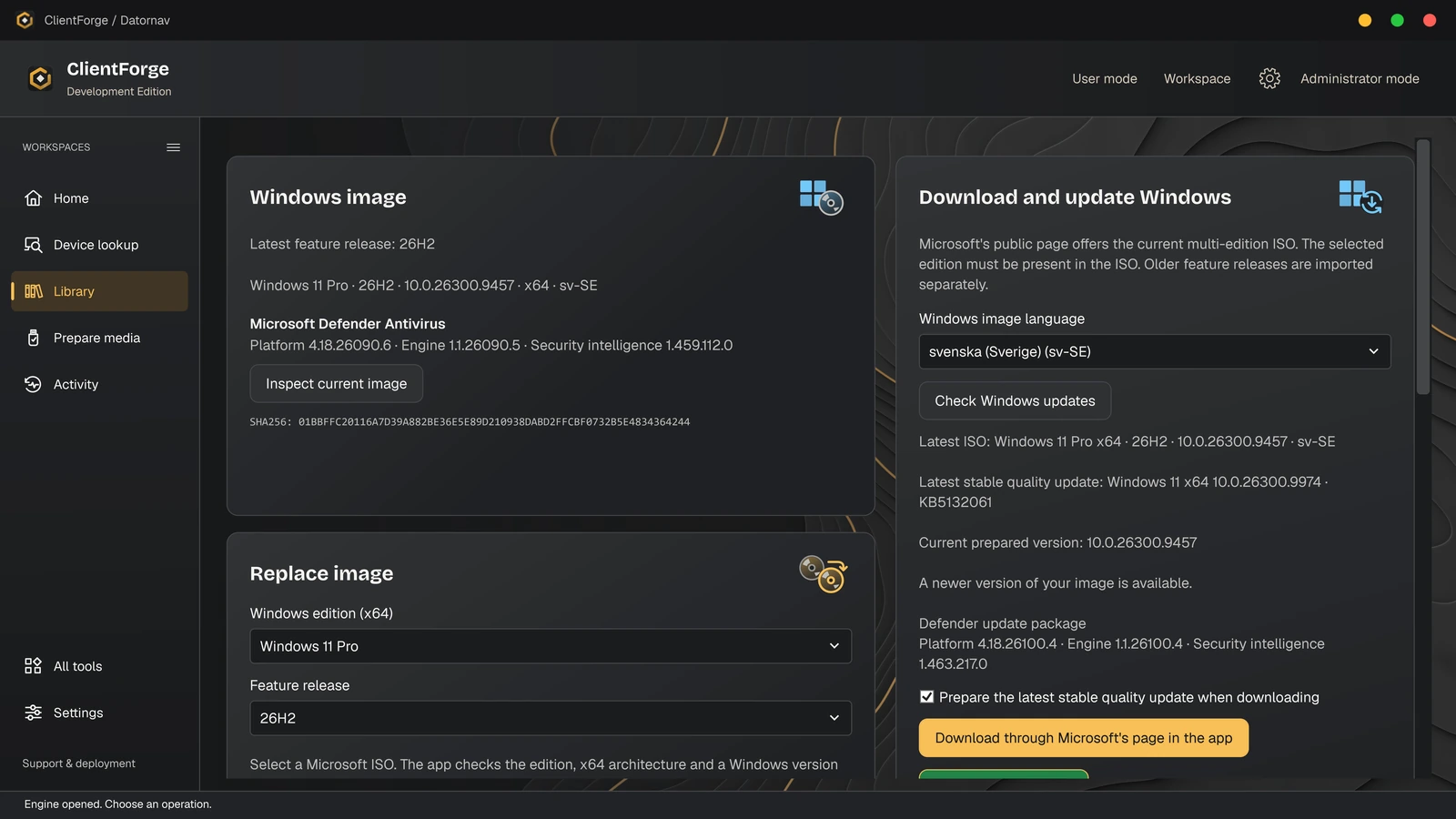
Prepare the image
Download Windows or import your own ISO. Approve one job to apply Microsoft’s latest applicable Windows quality update and Defender package to the image. Then choose your languages, Office and apps.
Coming soon
More and more PCs are managed in the cloud with Intune or another MDM platform. When it’s time to install Windows, many IT teams still rely on older tools and scripts that take time to maintain.
With ClientForge, you can use your existing Windows image or build a new one with your own apps. Apply the latest Windows quality update and Microsoft Defender package to the image in one click. At deployment, ClientForge selects the right drivers for each model. You don’t need a dedicated deployment server.
Product film
Follow a technician as they update a Windows image, choose driver packs and install a PC from USB.
Platform
A PC can be easy to manage in Intune and still take time to prepare. A technician updates the image in one tool, looks for a driver pack on the manufacturer’s site and runs a separate script to apply the organization’s settings.
We built ClientForge to bring those steps together. Prepare the image once, sync your USB drive and use it for the next model too. Deployment ends at Windows first-run setup, ready for your usual enrollment process.
Interactive demo
Open the Library, switch Windows images and choose which apps to include. The guide explains each choice. Then sync the sample drive and see the result in WinPE.
 ClientForge/Datornav
Explore three views from the app. Enable JavaScript to try the interactive demo.
Download Windows or import your own ISO. Approve one job to apply Microsoft’s latest applicable Windows quality update and Defender package to the image. Then choose your languages, Office and apps.
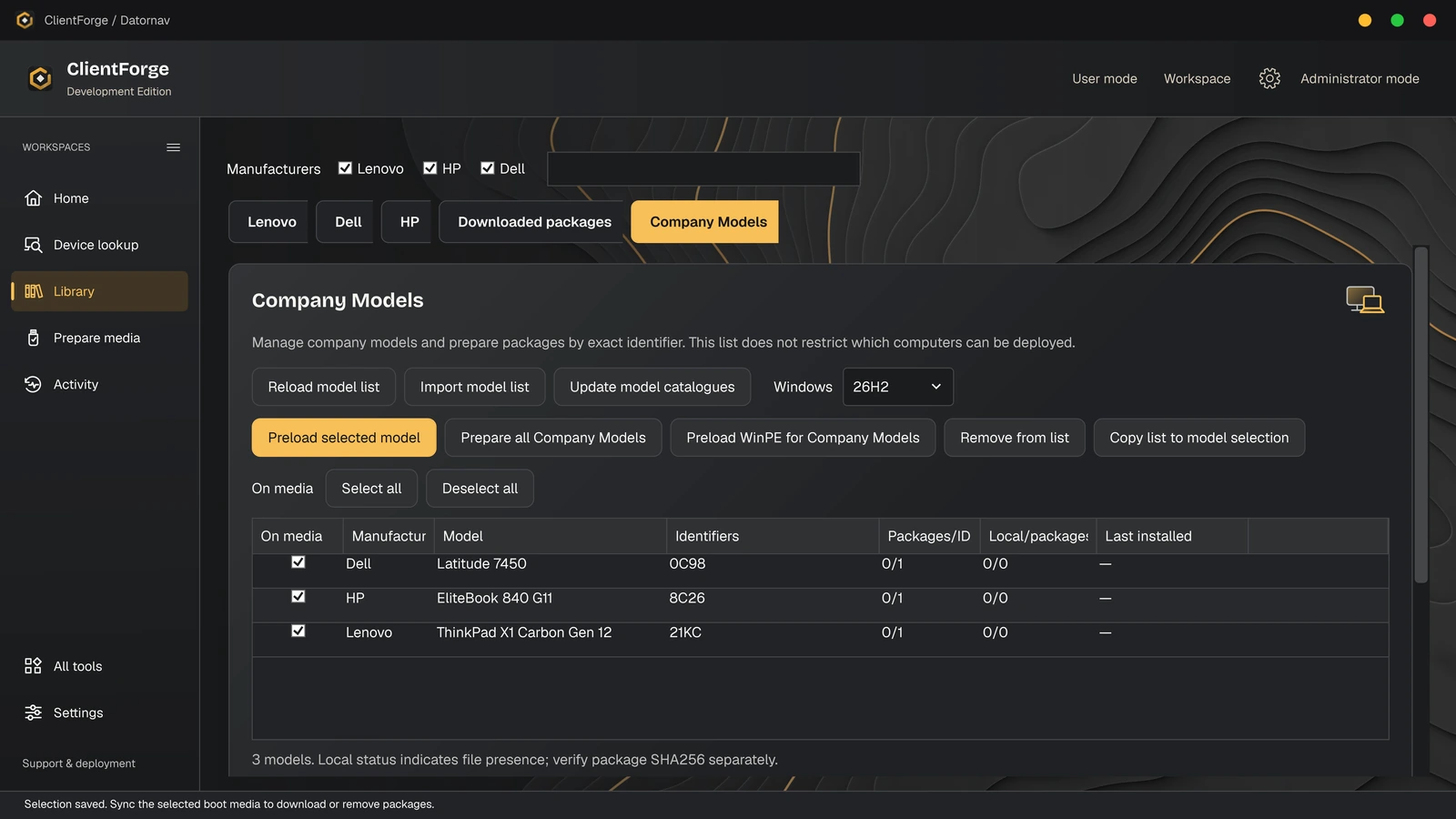
Choose models from Lenovo, Dell and HP. Preload driver packs for offline use or let ClientForge fetch missing packs over Ethernet.
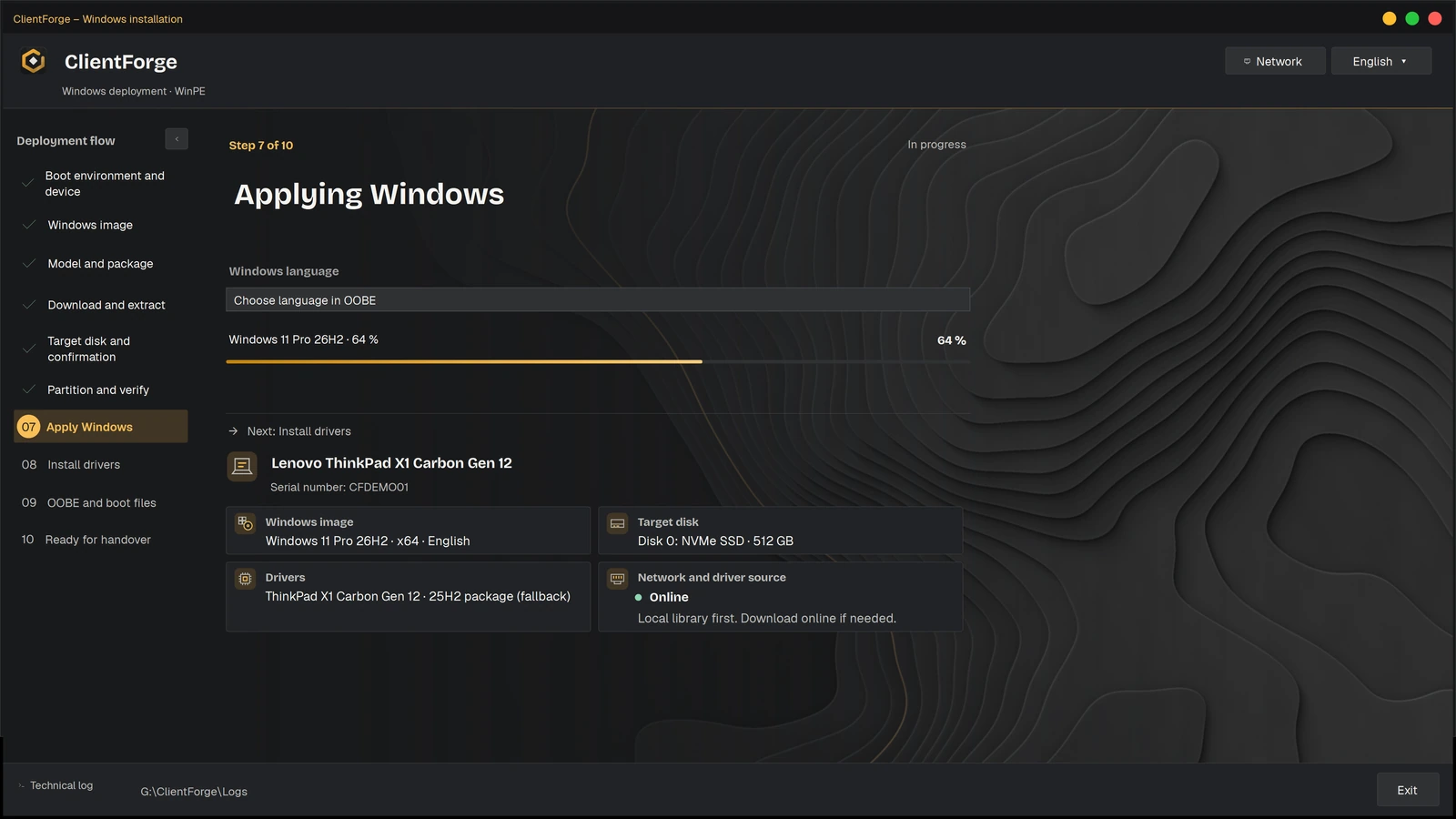
Create or sync your USB drive. Review the target disk in WinPE and follow the installation until Windows first-run setup takes over.